The Reconciliation Module in SkySlope Books allows you to add your bank account(s).
- After bank accounts are added:
- Bank feed can be started for reconciliation purposes
- Bank account(s) will be available in Opening Balance screen to add opening balance(s)
Which banks are supported?
SkySlope Books' banking module supports most major banks, which can be found when beginning the connection process.
If a bank is not listed, then we do not have a relationship with the bank, and the bank feed will need to be added manually or imported via a CSV file.
Note: When enrolling your Bank information to SkySlope Books' Bank module, SkySlope Books does not store the login information or account/routing number in its system.
Adding Bank/Trust/Credit Card Account(s)
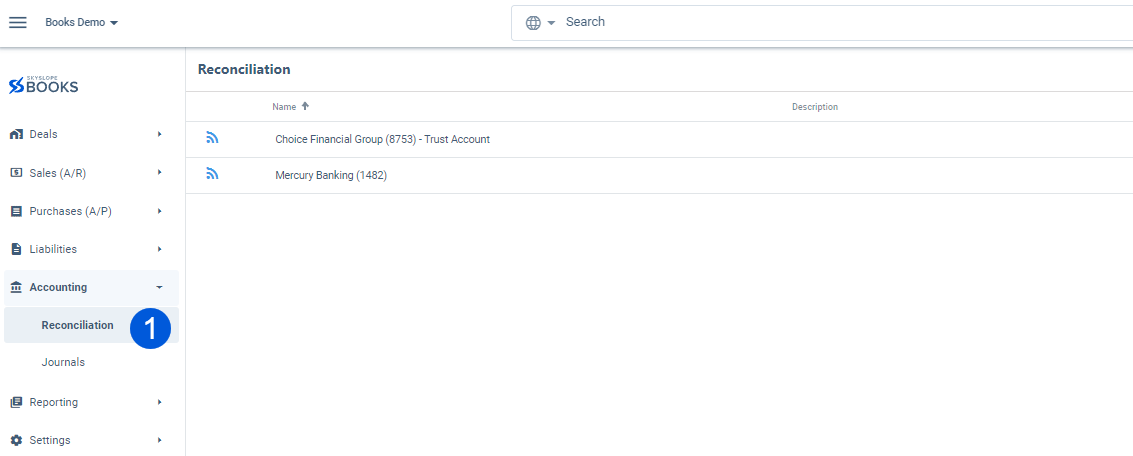
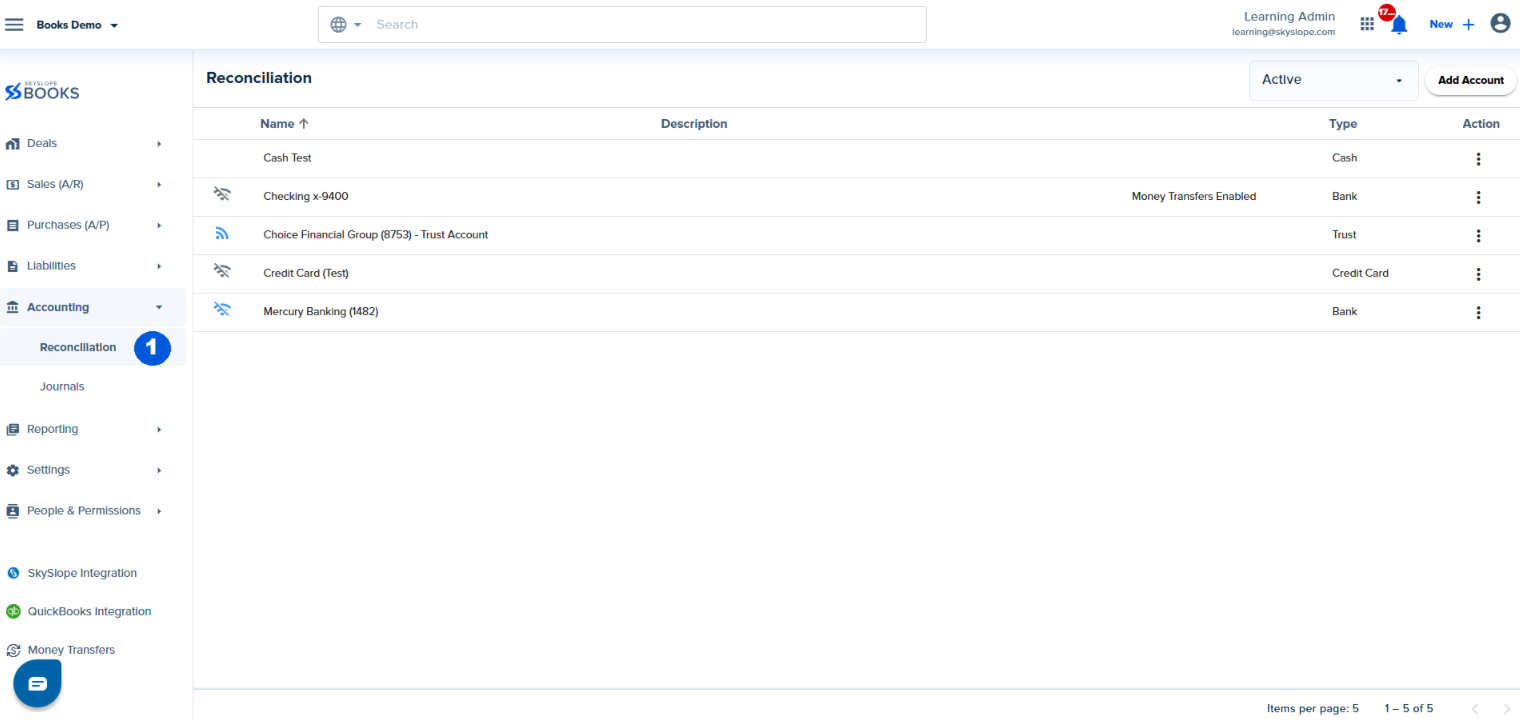
1. Navigate to the Left Navigation Bar and go to Accounting > Reconciliation.
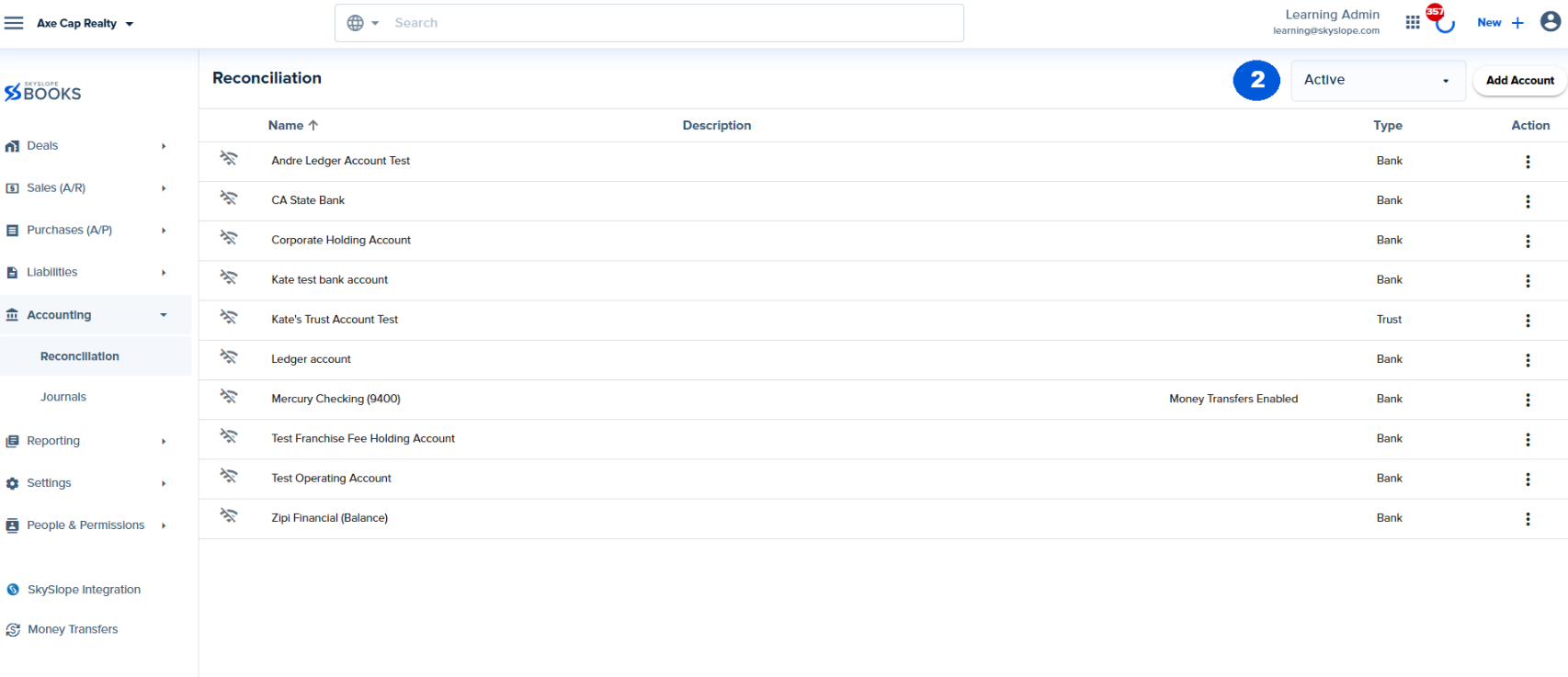
2. Within the Reconciliation screen, click on "Add Account" in the top right corner.
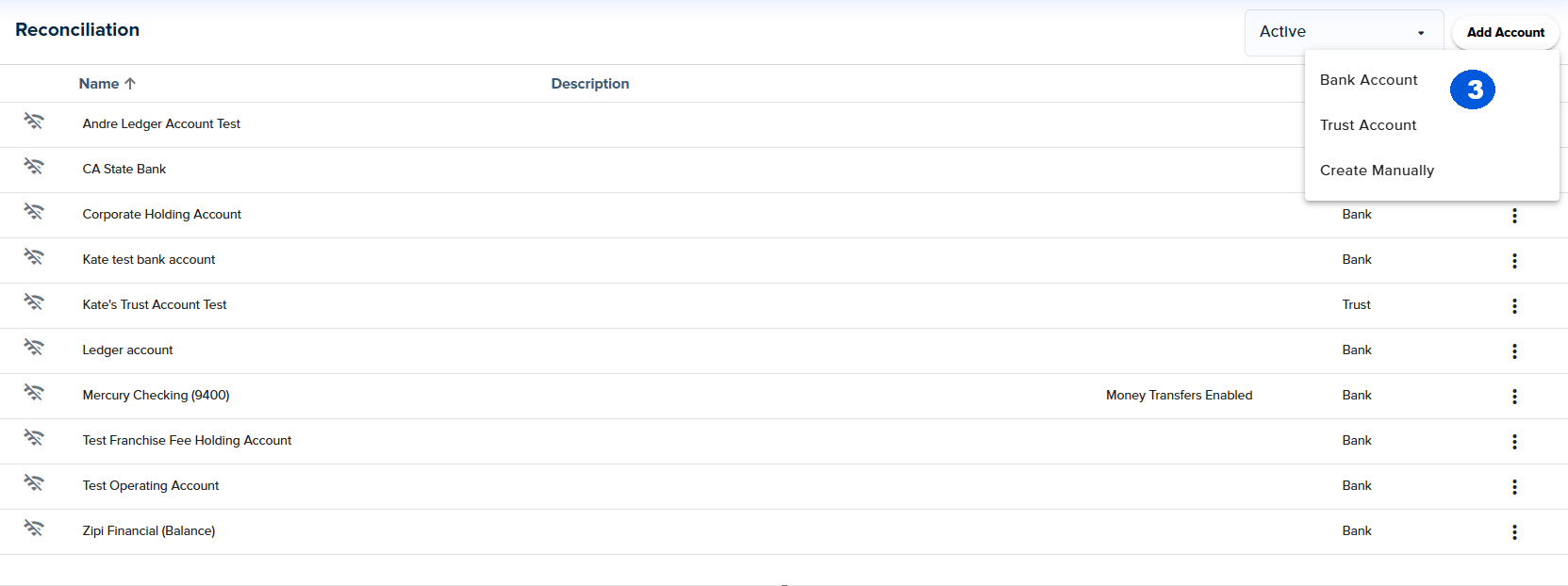
3. After clicking on the account, a drop-down appears. Click on "Bank Account or Trust Account".
4. Click on "Continue" to search for your banking institution and sign in using Plaid.

5. Optional: Enter your phone number to log in or sign up for Plaid, or click "Maybe Later" to skip this step.

6. Use the Search field to search for the banking institution.
NOTE: After searching, if the bank account is not found, then click Exit. The bank account and bank feed will need to be added manually and the transactions will be added manually or imported via a CSV file.

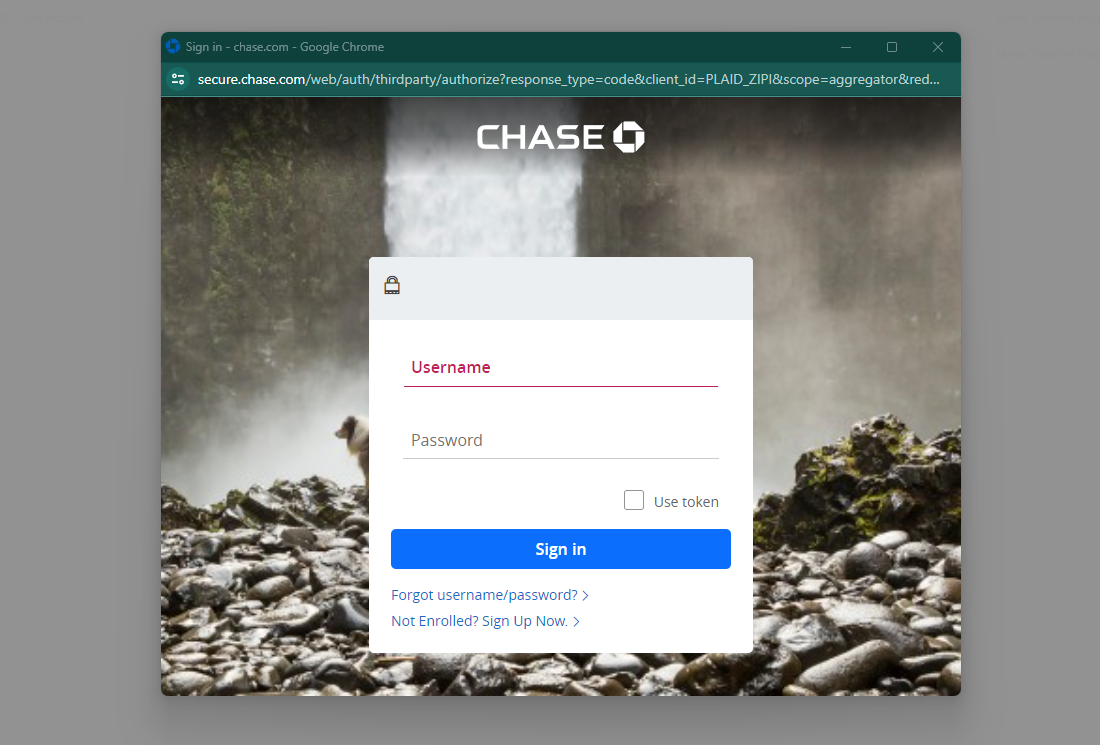
7. If the Bank is found, then click "Continue to login" and enter the login credentials for the bank account you will be reconciling in SkySlope Books.
8. Once the bank is successfully added, it will be visible in the Reconciliation screen.

Starting a Bank Feed
Complete this step if your brokerage will be utilizing Books for reconciliation and you will be utilizing your bank feed to match transactions for reconciliation purposes.
1. Navigate to the Left Navigation Bar and go to Accounting > Reconciliation.
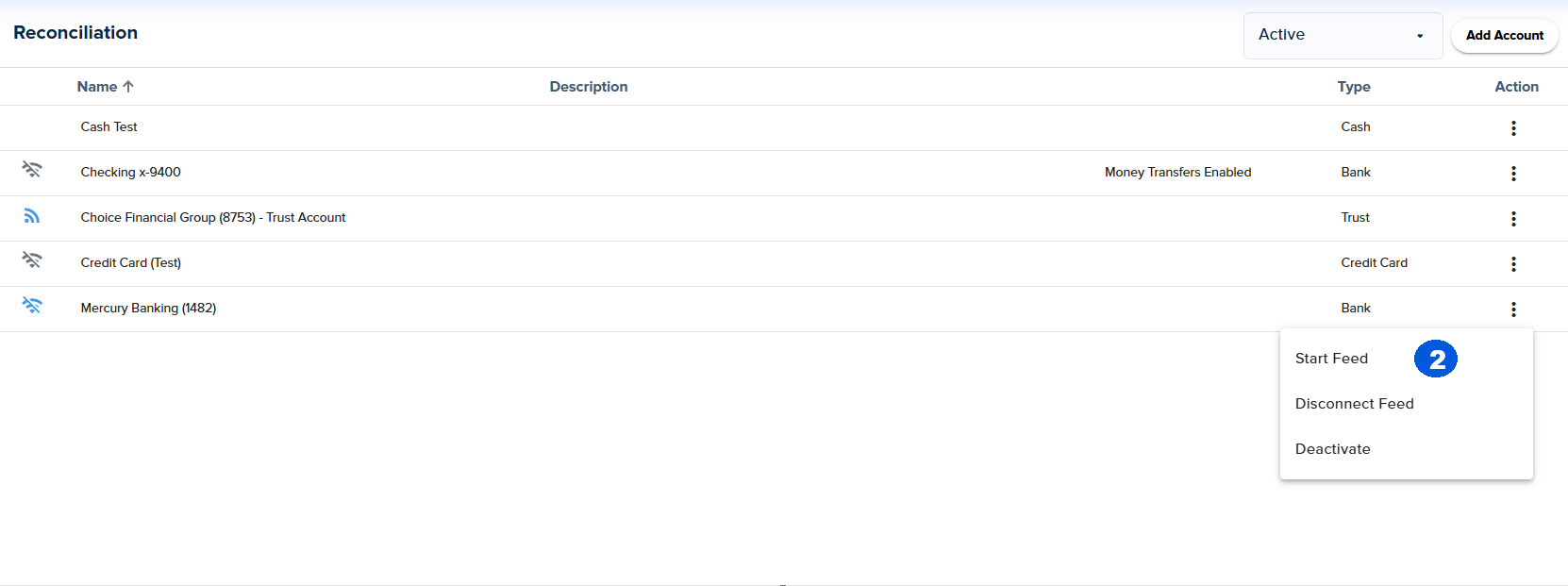
2. Click the Action Menu for the bank account and select "Start Feed"
3. A pop-up will appear. Enter the start date to activate the bank feed from and click "Ok".
Note: This date should be the date you are going to start processing accounting in Books.

4. The bank feed is now activated. If you would like to view the feed, click on the line for the bank account.
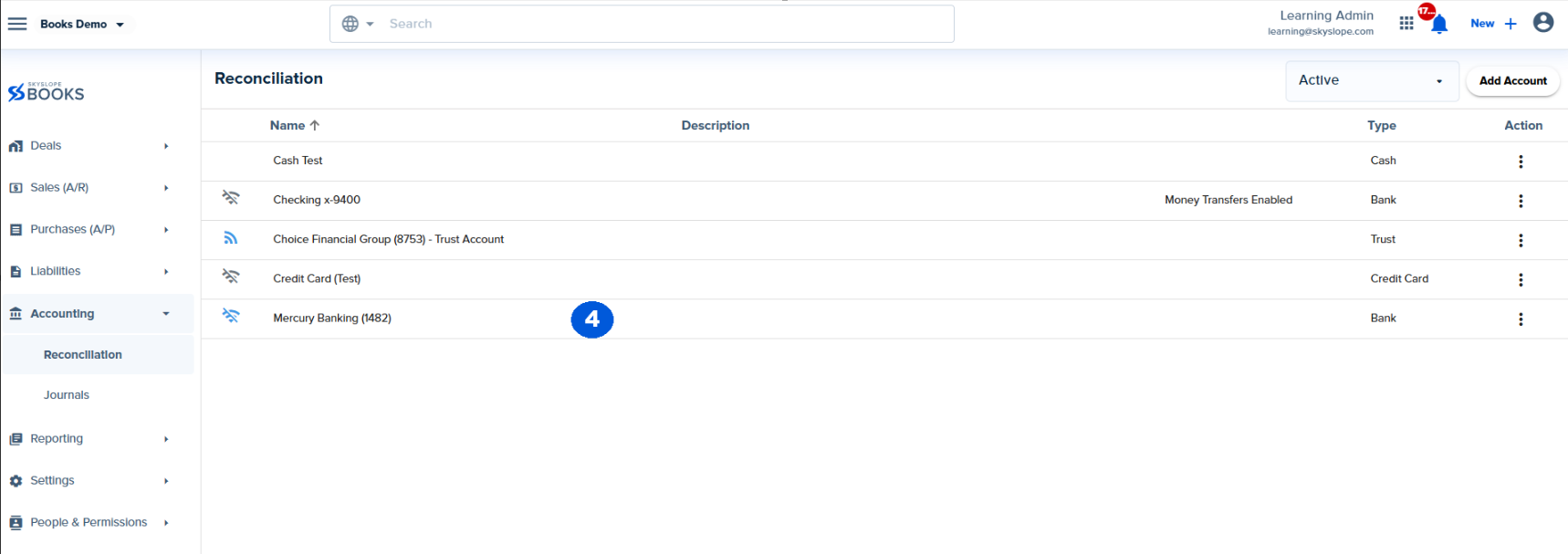
5. The bank transactions will now be listed in the Bank Feed tab. You can also navigate to the "Transactions (Not Matched)" and "Reconciliation" screens here.

6. Once you are ready to reconcile, learn how in the Reconciling in SkySlope Books article!
Was this article helpful?
That’s Great!
Thank you for your feedback
Sorry! We couldn't be helpful
Thank you for your feedback
Feedback sent
We appreciate your effort and will try to fix the article
<\br>