Follow the steps below to learn how to add a Commission Modifier to an agent's Contact Card. Adding a Commission Modifier is a one-time action allowing you to tell the SkySlope Books system if an agent has already contributed a certain amount towards their Commission Cap for a specific timeframe.
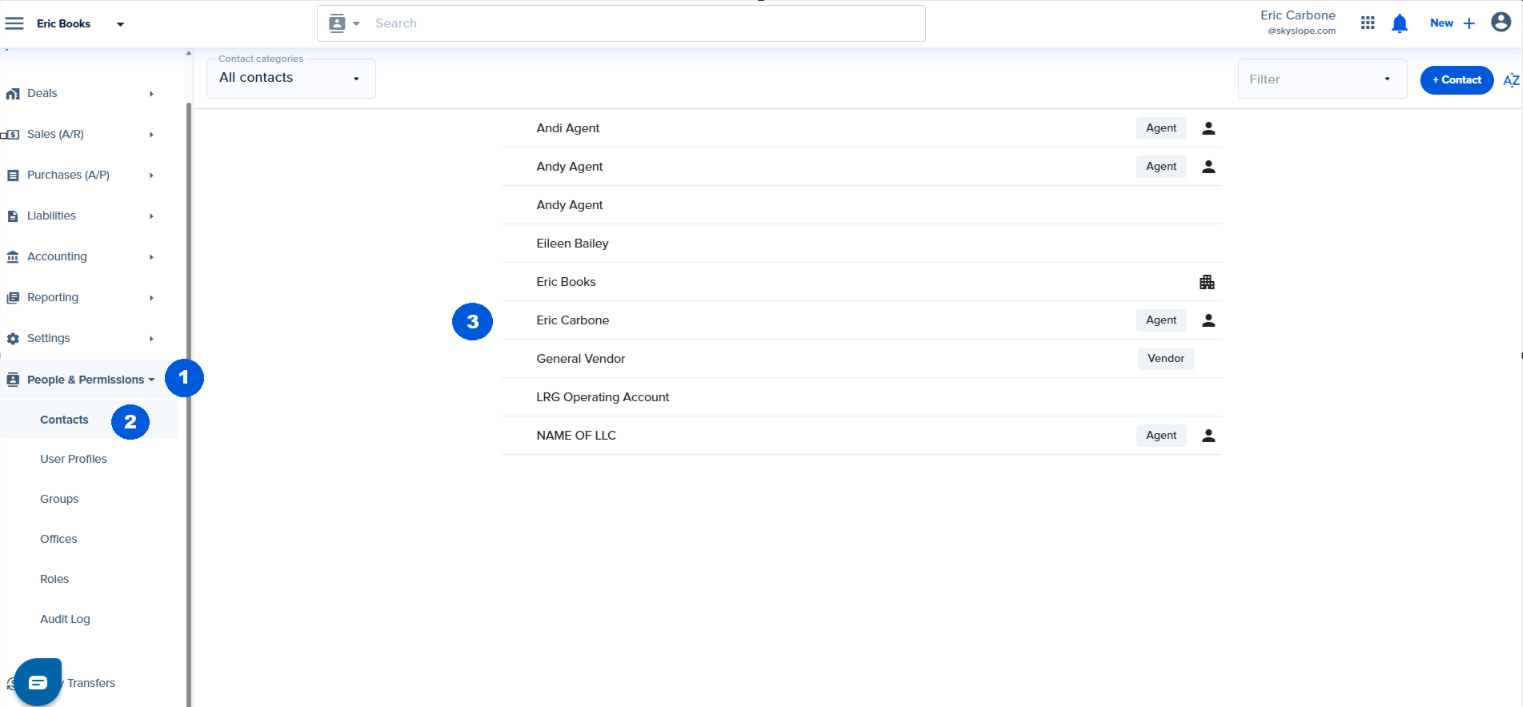
1. In the left menu, navigate to People & Permissions. Then, go to the Contacts section.
2. Once in the Contacts section, click on the contact's name. Then click the pencil icon to edit that contact.
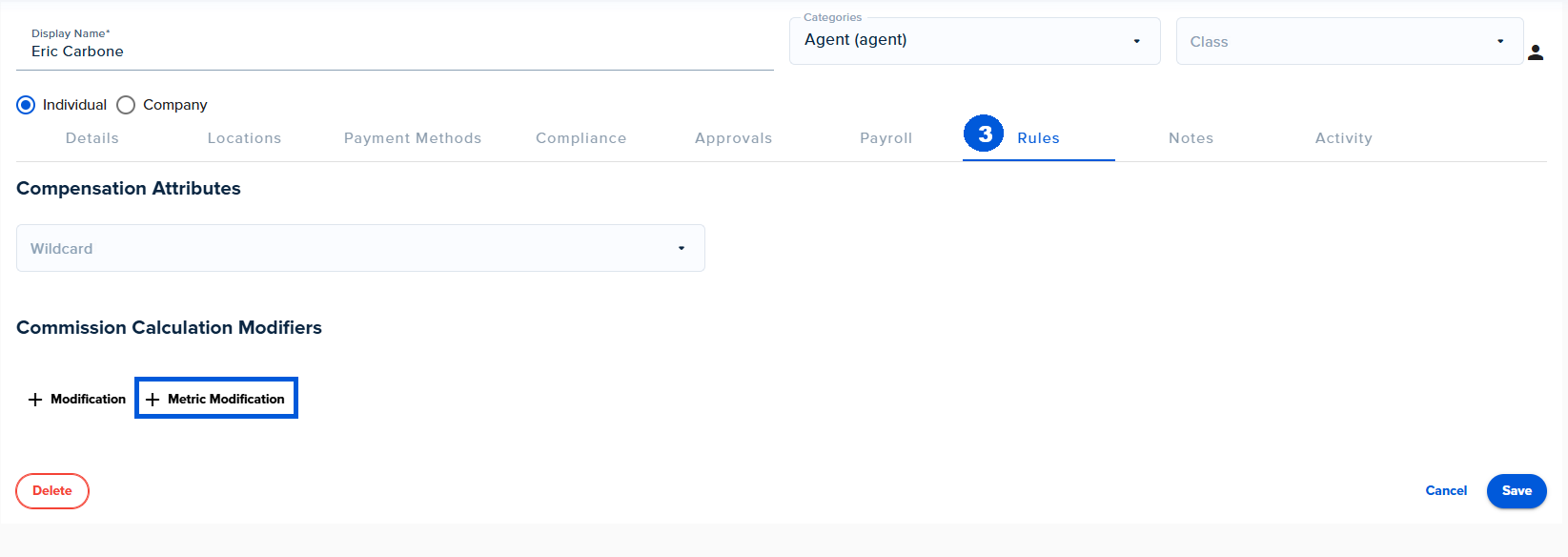
3. Once on the Edit Contact screen, navigate to the Rules tab. On the Rules tab, locate Commission Calculation Modifiers. Then click + Metric Modification
(You will notice there is a +modification button button, this is for legacy plans built before 04/2025 and specific plans requiring complex set ups. If your plans were built prior to 04/2025 or adding a Metric Modifier does not work as expected please contact Books Support and we can help apply the correct modifications to your plans)
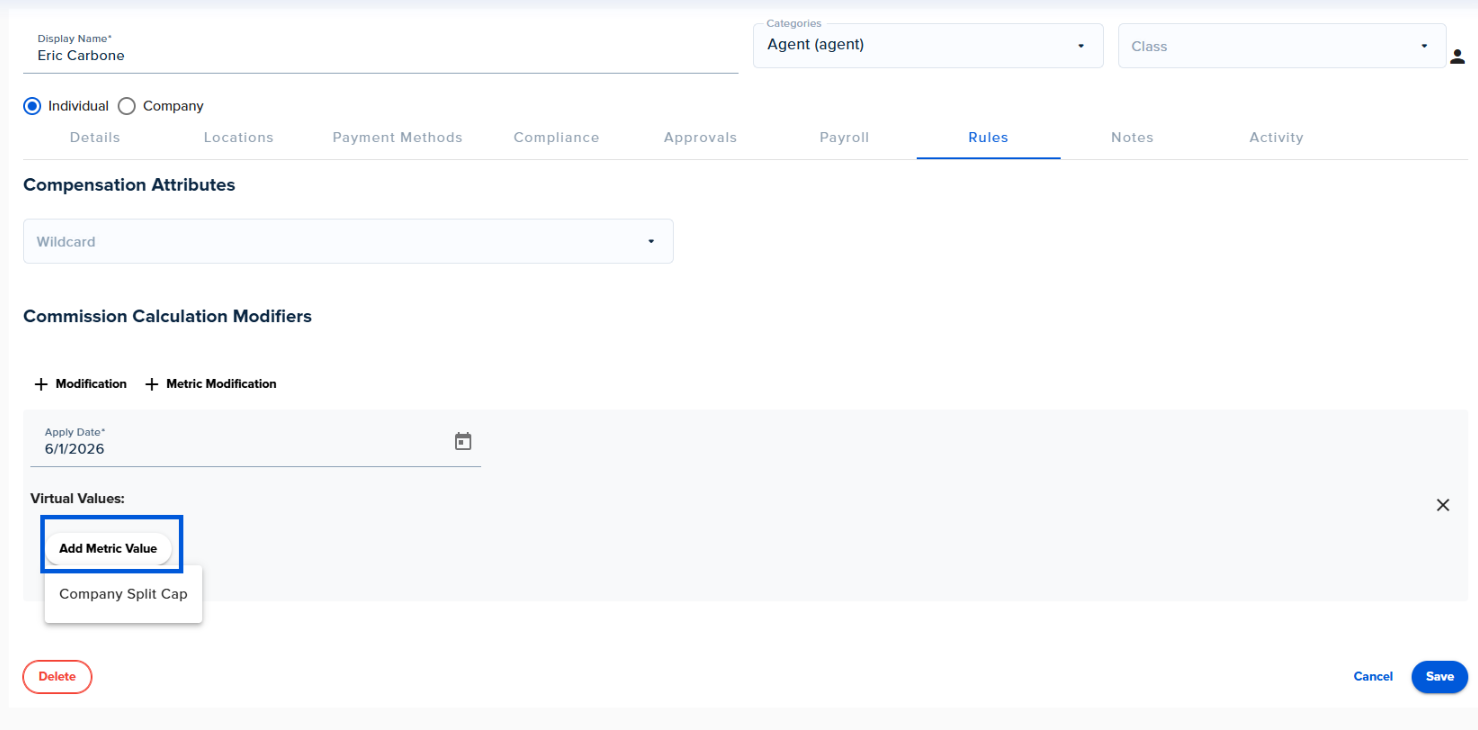
4. Next, you will need to add the modification details:
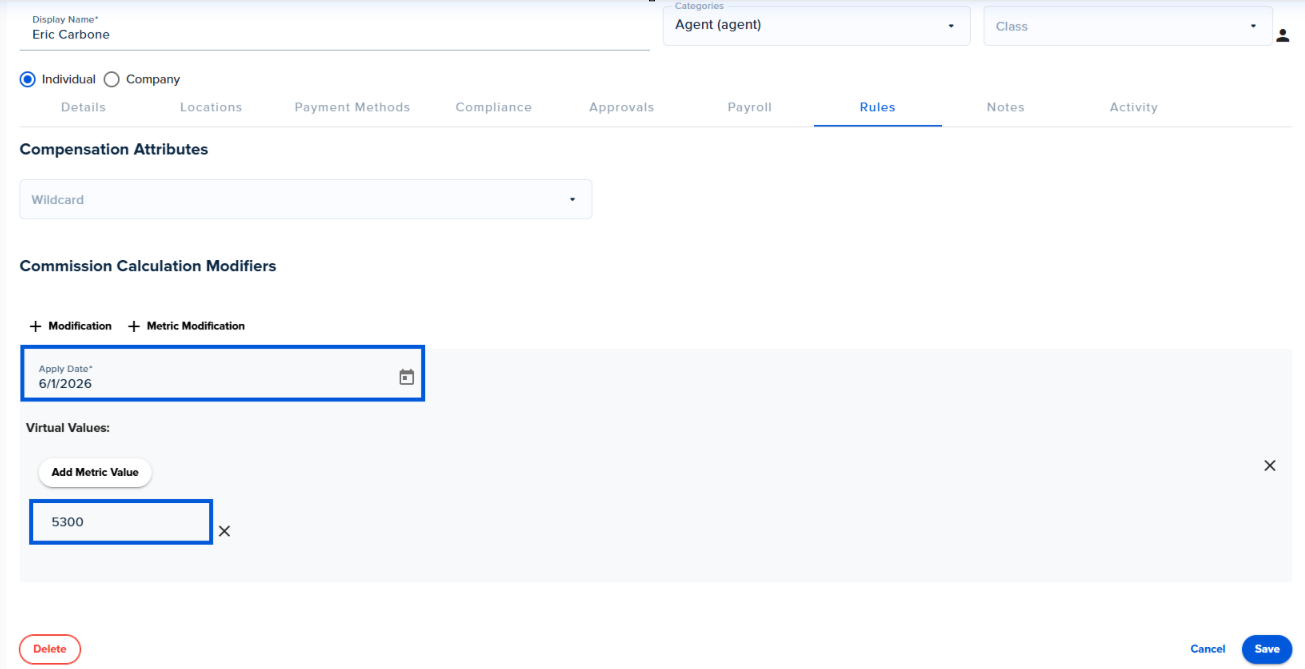
- Apply Date: When the system should take the modification into account
Add Metric Value: This will show a list of all of your Cap Metrics. Choose the appropriate metric from the drop down menu.
Then enter the amount you would like to apply to the agent's cap
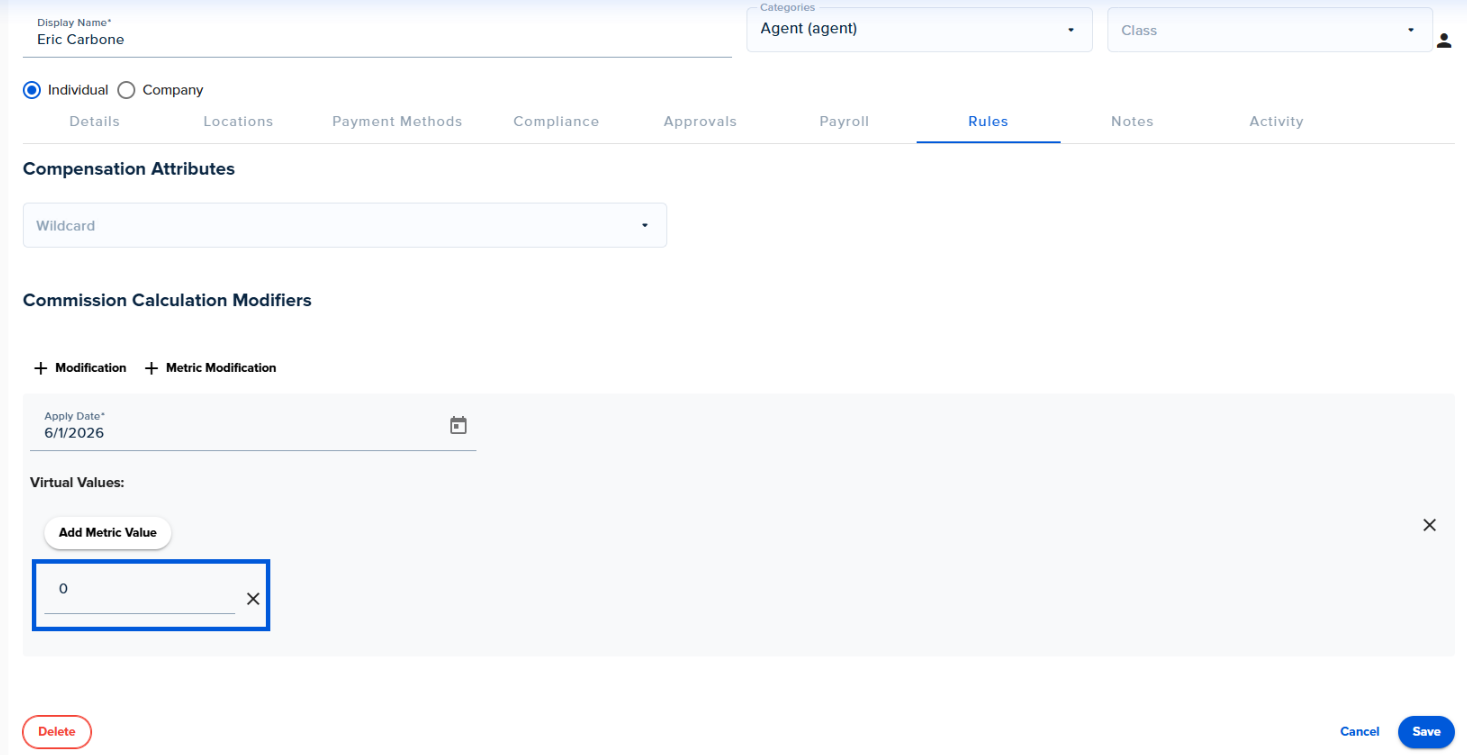
Example: Below is a sample Commission Modification. This example is telling the system that as of 6/1/2026, this agent has contributed $5,300 towards their company contribution cap. Any deals with a closing date after 6/1/2026 will take the value into consideration for commission capping.
5. Once you've added the modification details, click Save.
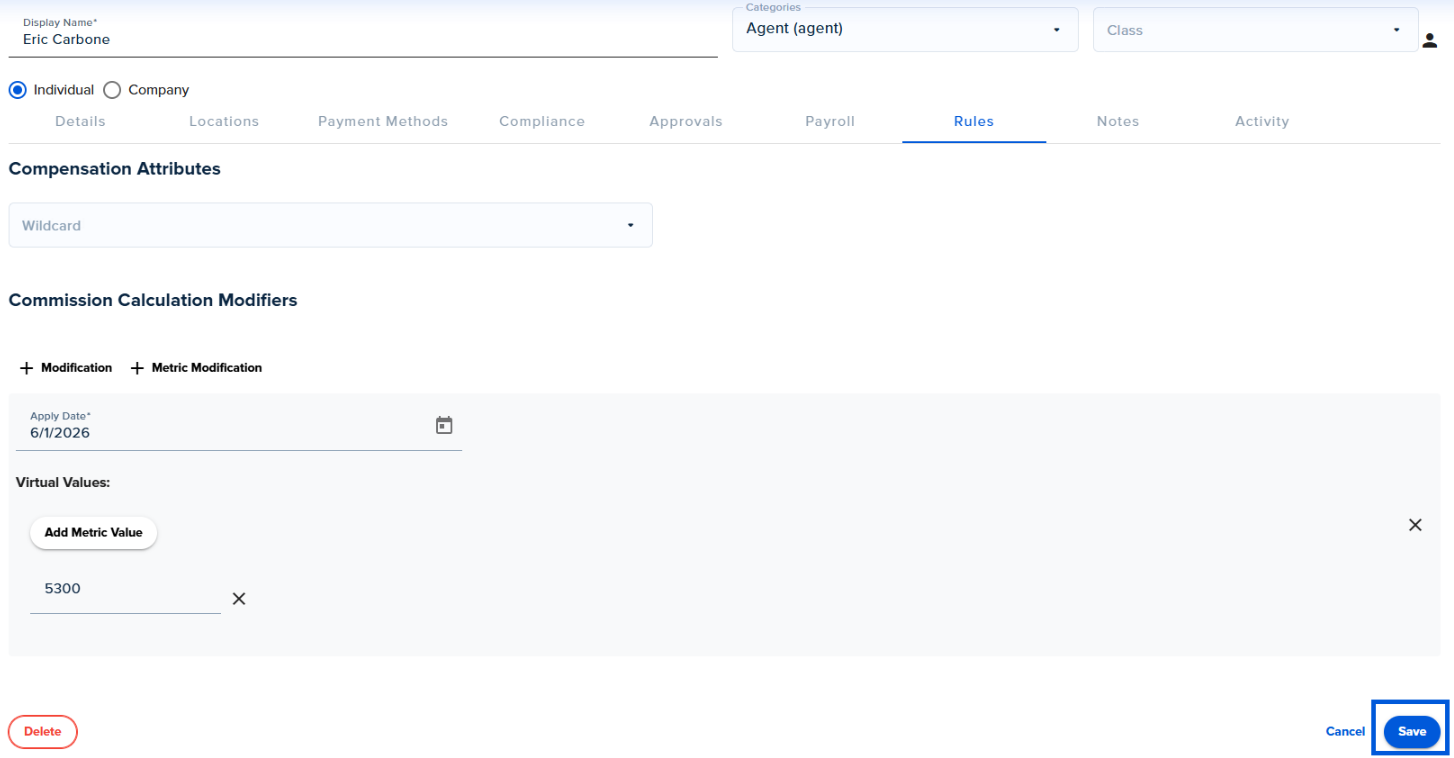
Once the Commission Modifier is saved, the modification will impact the calculation of commission plans, reporting for the Cap Report, and the widget for the Cap Report.
Was this article helpful?
That’s Great!
Thank you for your feedback
Sorry! We couldn't be helpful
Thank you for your feedback
Feedback sent
We appreciate your effort and will try to fix the article
<\br>