The Deals by Status Widget allows you to keep track of how many deals you have each week, month, quarter, year, or over a custom date range by their status (active, pending, closed, etc.).
Getting Started
1. Under the Reporting module, navigate to the Dashboard you want to customize.
2. Click Edit Dashboard, then click the + icon under Add Widget.
3. Select the Widget Type. In this article, we will go over creating the Deals by Status Widget.
Required Fields for the Widget
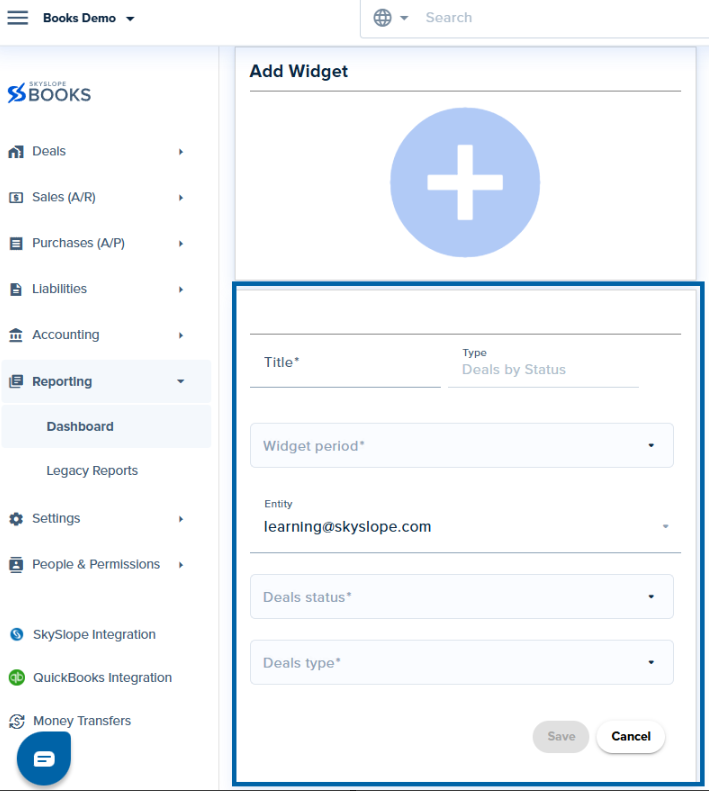
- Title: The title you want to name your widget for your Insights board
- Widget Period: You can choose from:
- Current week
- Current quarter
- Current month
- Current year
- Custom date
- Entity: The Profile you want to see the data for. By default, it populates to the signed-in user. You can change it to company or custom
- Deal Status: You can choose one or multiple deal statuses from the available SkySlope Books statuses
- Deal Type: You can choose Buyer, Listing, or both
What does the widget show?

This widget shows the total number of deals Alice is part of with closing dates in the current quarter. The different colors on the chart represent the different deal statuses in SkySlope Books.
You can hover over the different colors to see the breakdown based on status:
Blue - Opportunity
Green - Closed
Purple - Active
Grey - Cancelled
Orange - Pending
Red - Processed
Was this article helpful?
That’s Great!
Thank you for your feedback
Sorry! We couldn't be helpful
Thank you for your feedback
Feedback sent
We appreciate your effort and will try to fix the article
<\br>