The Income Widget allows you to set your NET and GCI goals for the month, quarter, or year and keep track of how close you are to hitting those goals with each deal that closes.
Getting Started
1. Under the Reporting module, navigate to the Dashboard you want to customize.
2. Click Edit Dashboard, then click the + icon under Add Widget.
3. Select the Widget Type. In this article, we will go over creating the Income Widget.
Required Fields for the Widget
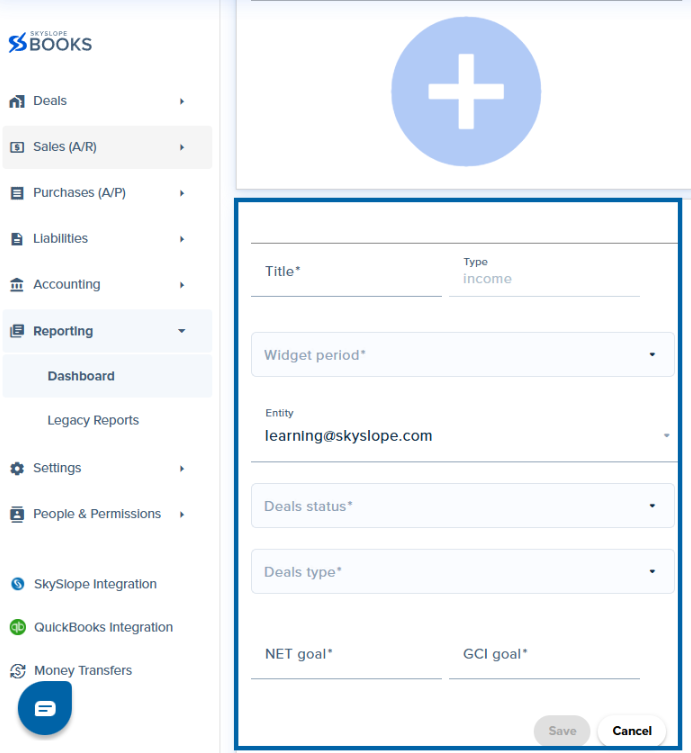
- Title: The title you want to name your widget for your Insights board
- Widget Period: You can choose from:
- Current week
- Current quarter
- Current month
- Current year
- Custom date
- Entity: The Profile you want to see the data for. By default, it populates to the signed-in user. You can change it to company or custom
- Deal Status: You can choose one or multiple deal statuses from the available SkySlope Books statuses
- Deal Type: You can choose Buyer, Listing, or both
- NET Goal: Your goal for the Company's total commission
- GCI Goal: Your goal for the total commission for the deals in the selected time period
What does the widget show?

This widget shows the NET and GCI goal for the company with the closing date so far this year.
The NET shows the company's total commission as a percentage of the goal.
The GCI shows the total commission for all the deals within the week as a percentage of the goal.
Was this article helpful?
That’s Great!
Thank you for your feedback
Sorry! We couldn't be helpful
Thank you for your feedback
Feedback sent
We appreciate your effort and will try to fix the article
<\br>