Individual Settings are available for everyone who has activated the SkySlope add-on.
To access your individual settings, follow the steps below.
1. Navigate to the Profile icon  in the upper right. From the drop-down menu, select Apps.

2. Click Settings on the SkySlope card.

3. This will take you to the Individual Settings page.
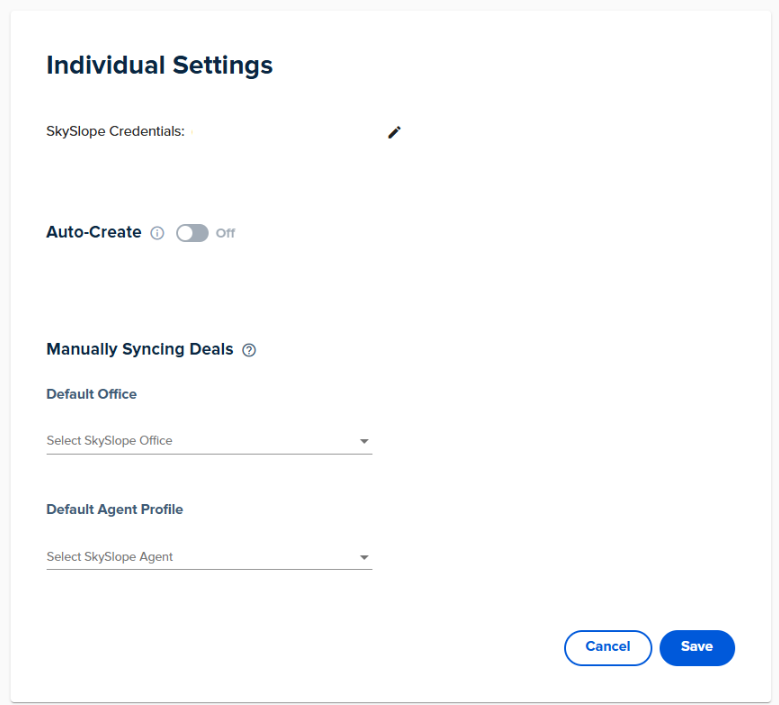
4. You have the following options here:
- SkySlope Credentials: You can edit your SkySlope credentials here
- Auto-Create: This option lets you auto-create any new deals in SkySlope in SkySlope Books
- Manually Syncing Deals
- Default Office: You can select your default office. This will be used by default for all manually synced deals
- Default Agent Profile: You can select your default agent. This will be used by default for all manually synced deals
Auto-Create
1. To turn on this feature, enable the toggle.
Note: This auto-create will not work if auto-create is turned on company-wide. Draft deals created here will not be synced as dual deals in SkySlope Books.

2. This lets you add the trigger(s) for auto-creation:

3. Any deal that meets these conditions will be auto-created in SkySlope Books. You have the following options:
- SkySlope Office: You can choose one or multiple SkySlope offices
- Transaction Type: You can choose Listing, Sale, or both
- Transaction Status: You can choose between the different SkySlope statuses
- Enable Notifications: Enabling this option means you get a notification every time a deal is auto-created in SkySlope Books

4. Once you have created you trigger, click Save & Go To SkySlope Books.
Note: Auto-create runs every 5 minutes.
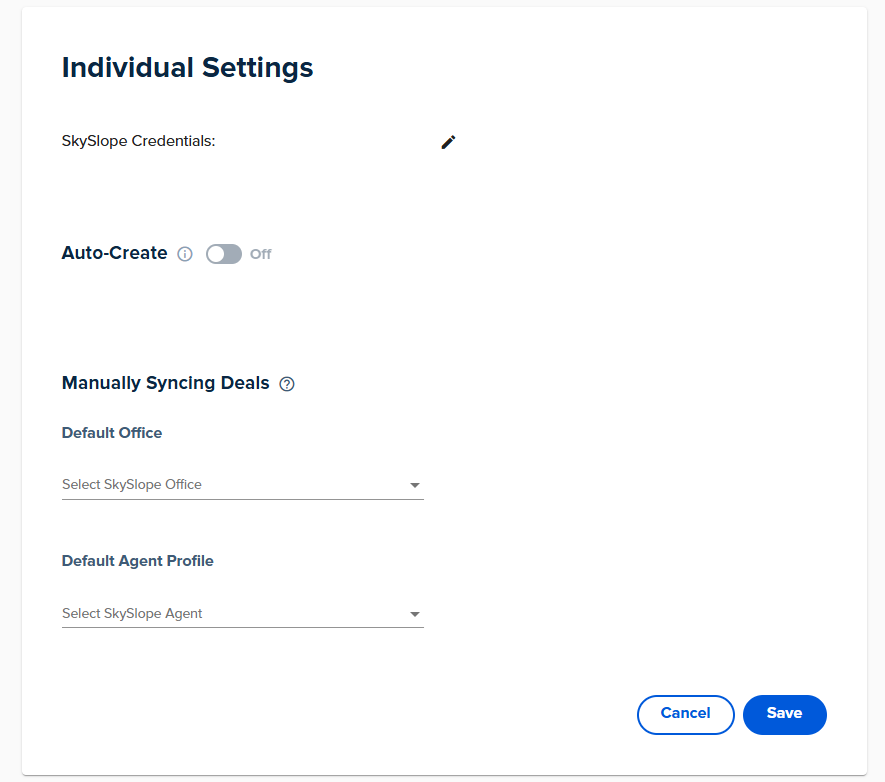
5. Any new deals in SkySlope that meet the criteria will now be auto-created in SkySlope Books.
Syncing Deals Manually
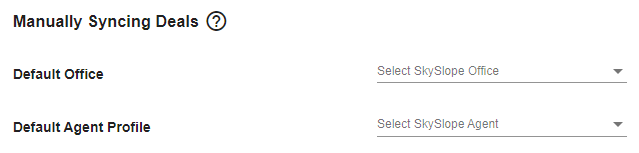
This option lets you choose your default office and agent for when you push a deal to SkySlope.
Note: This option only works when the primary agent on the deal in SkySlope Books is not an agent in SkySlope.
Every time you push an existing deal from SkySlope Books to SkySlope, these fields will be auto-populated.
Was this article helpful?
That’s Great!
Thank you for your feedback
Sorry! We couldn't be helpful
Thank you for your feedback
Feedback sent
We appreciate your effort and will try to fix the article
<\br>