In this article, we will review Deal Types and Deal Statuses within SkySlope Books.
Deal Types
Every transaction in SkySlope Books has a Deal Type. It shows which side of the transaction your brokerage represents, or what kind of service you provided. You choose the Deal Type from a list on the transaction.
SkySlope Books has the following Deal Types:
- Buyer Side - Represents the buyer in a sale
- Listing Side - Represents the seller in a sale
- Tenant (Rental) - Represents the tenant in a lease
- Landlord (Rental) - Represents the landlord in a lease
- Referral - Refers a client to another agent or brokerage and earns a referral fee
- Broker Price Opinion (BPO) - Gives an estimate of a property’s value
Tip: Pick the Deal Type that matches your brokerage’s role on the transaction. That keeps your transaction records accurate.
When a transaction is created in Skyslope suite, the option that is chosen for the Representation Type has a direct impact in Books. In this section, we will go over each option, how it translates to what is shown in Books and which option to use to create a dual deal.
When creating a transaction in Skyslope Suite, the first question that is asked, is the Representation Type:
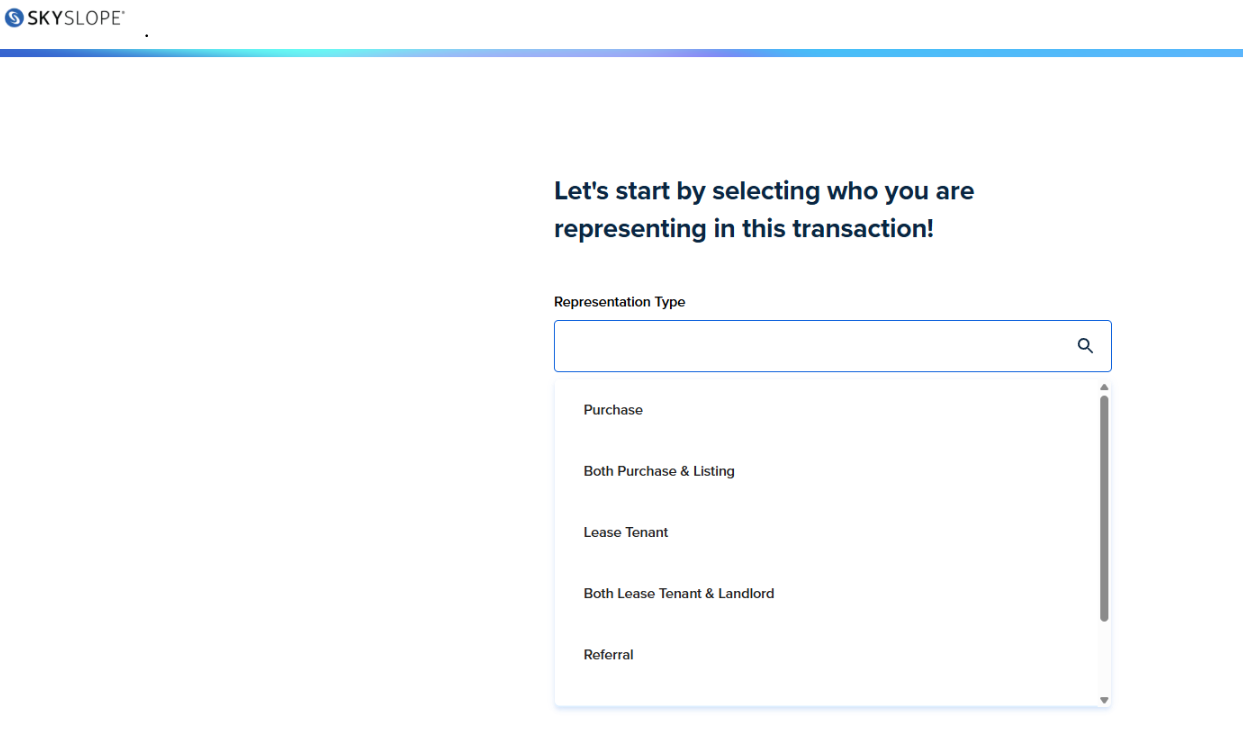
Once the transaction is created, the representation type will show here: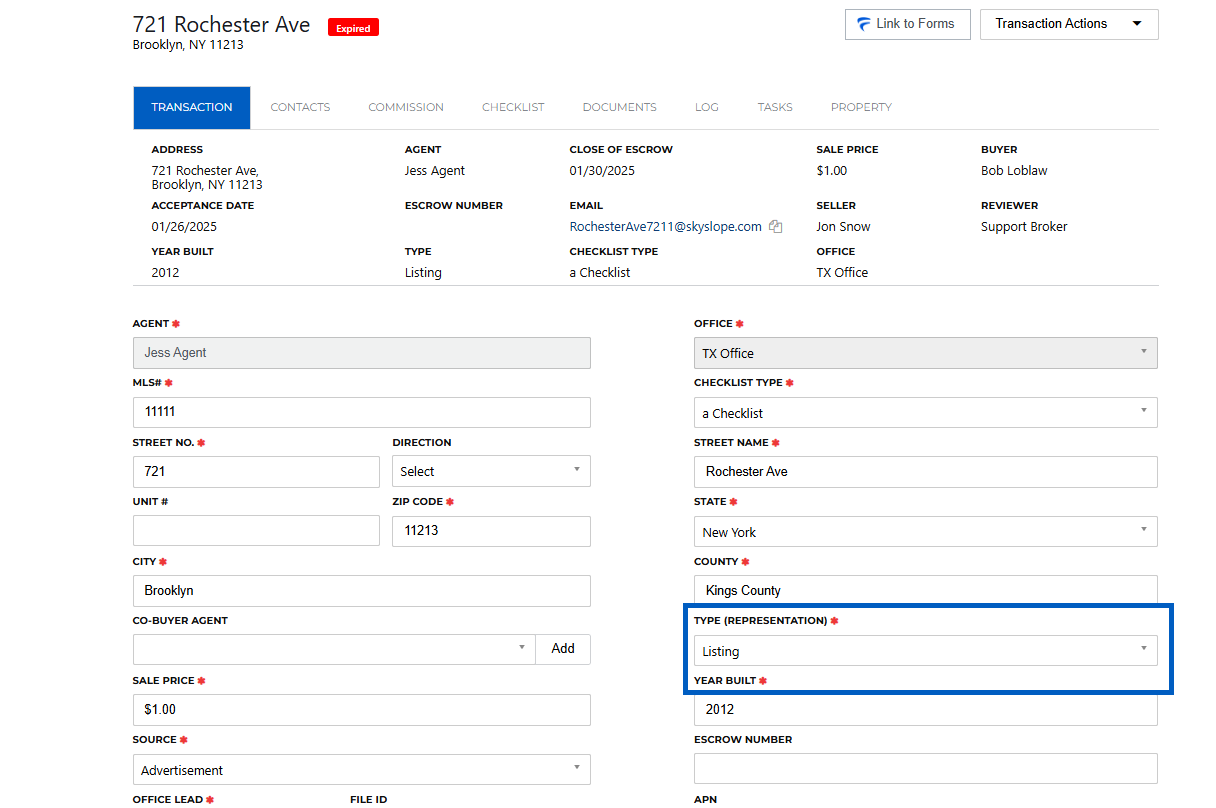
Each option transfers to an equivalent Deal Type option in Books:
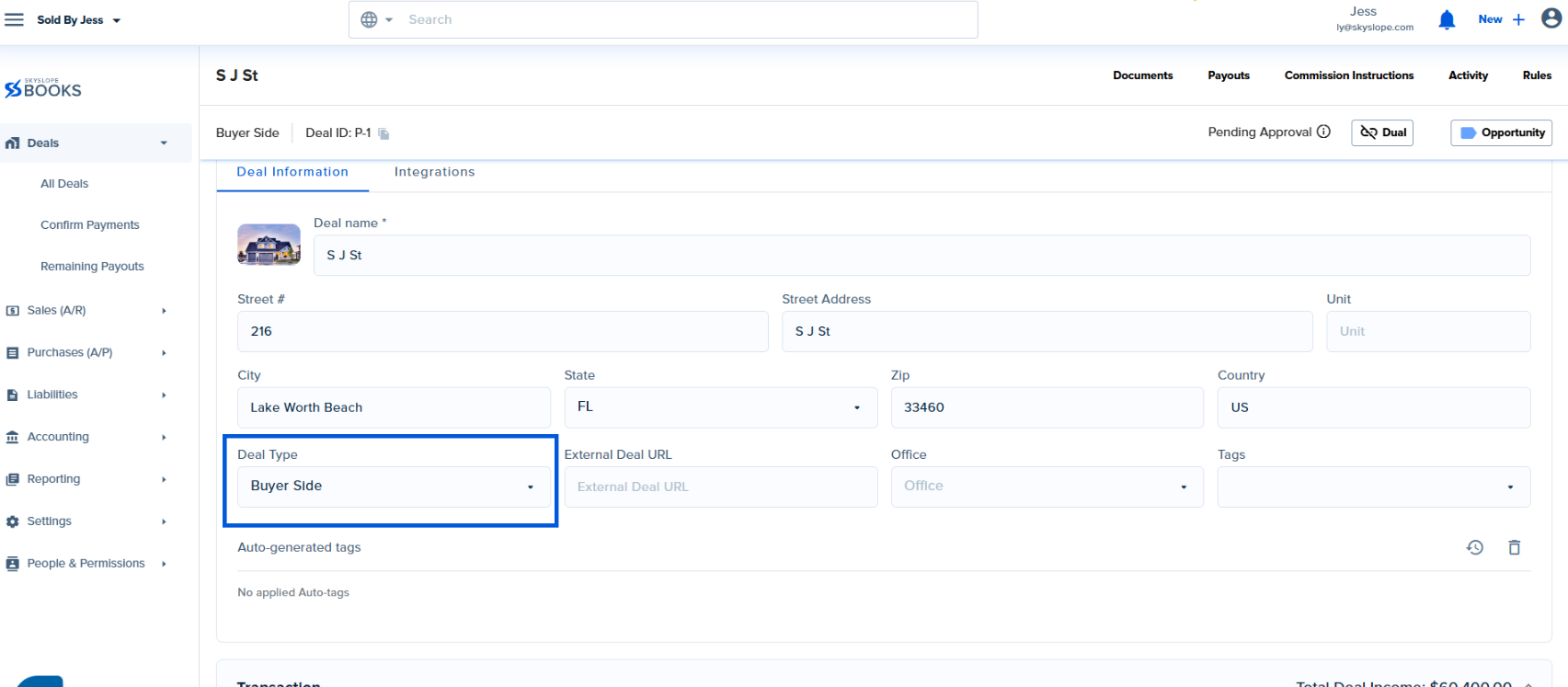
Here is every representation option within Skyslope Suite and when selected, what that option will show up as in Books:
- Purchase - Buyer Sale
- Both Listing and Purchase - Creates a Dual Deal in Books
- Lease Tenant - Tenant Rental / Landlord Rental
- Both Lease and Tenant and Landlord - Tenant Rental / Landlord Rental
- Referral - Referral
- BPO - Broker Price Option
Please note: For assistance with a Representation Type specific commission plan, please reach out to the Books Support team or your Customer Success Manager.
To create a Dual Deal in Books, you must choose the Both Listing and Purchase representation type when creating the transaction in Skyslope Suite.
If that option was not chosen, be sure to check out our Dual Deals article for assistance on how to create one!
Deal Statuses
Deal Statuses let you categorize your deals based on what stage they are in. Reports and filters on the Deals screen allow you to find deals by status.
Note: If the brokerage has the SkySlope Integration activated to automatically import listings and/or transactions into SkySlope Books, the initial status will populate into SkySlope Books. However the statuses in SkySlope Books will need to be manually updated after the initial import. This is by design, as SkySlope Books has additional statuses related to payouts.
SkySlope Books has the following Deal Statuses:
- Opportunity - This is used for deals where you may only have the address without any additional information and you'd like to create a placeholder for this deal in SkySlope Books. You can also use this to forecast the commission you may get over the next 60-90 days.
- Active - This is used for listings.
- Pending - The contract has been signed and the deal is in escrow.
- Closed - The deal has closed escrow.
- Processed - Processed is specific to SkySlope Books. It means that the disbursement has been approved, and the payouts have been made in SkySlope Books.
- Cancelled - This is for fallen through deals and similar to archiving. If you don't want to delete the deal, you can set the status to Cancelled.
Note: Draft deals cannot have Closed or Processed statuses.
Changing Deal Statuses
There are three places that you can update Deal Statuses in SkySlope Books.
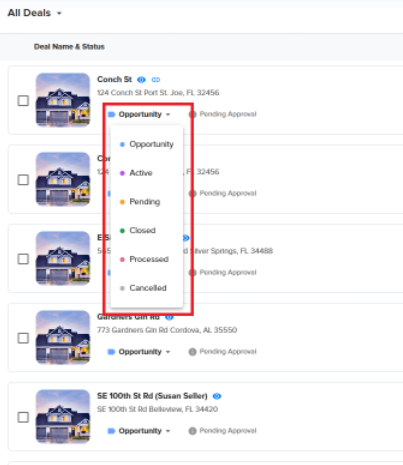
Deal Dashboard
1. In the left navigation menu, go to Deals.
2. The Deal Status column is to the right of all the deals.
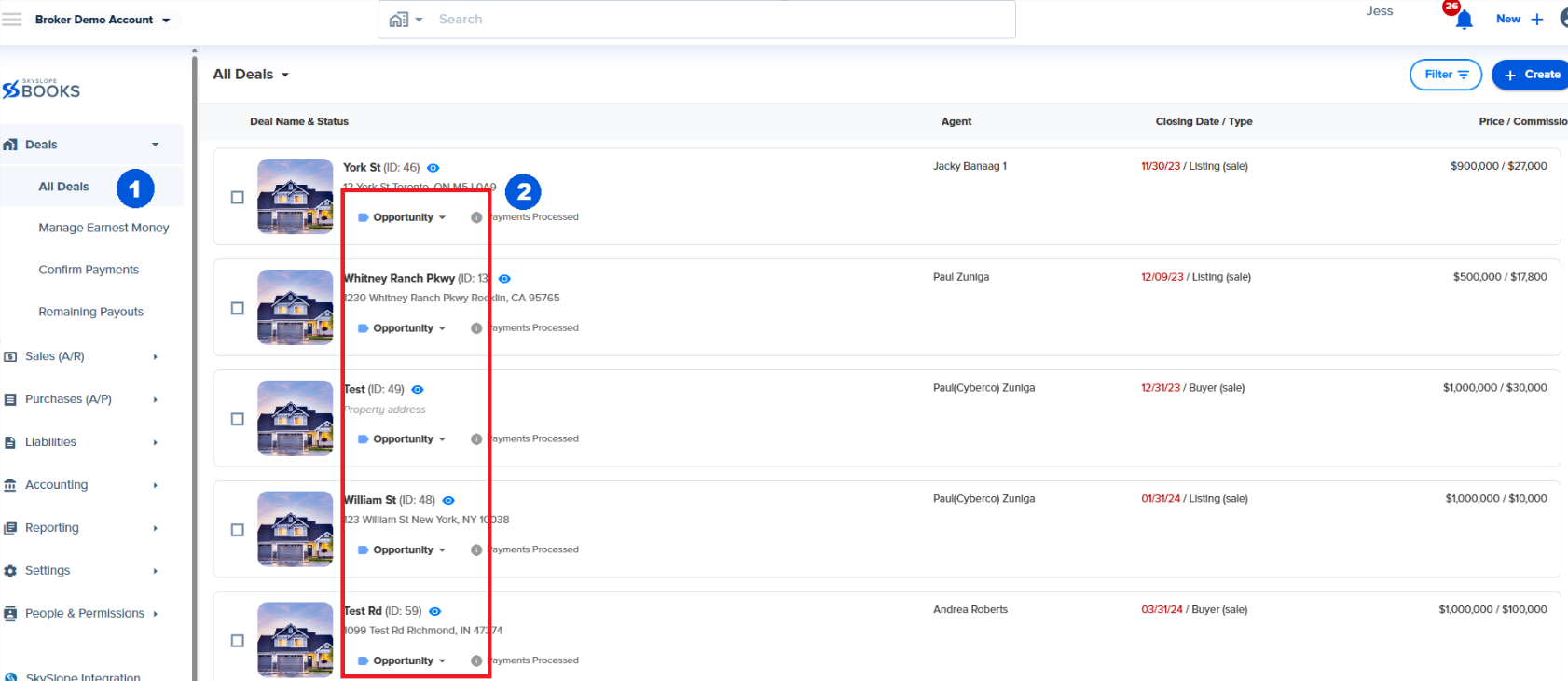
3. Click on the status to access the drop-down menu, and then select the deal's new status. The Deal Status will update.
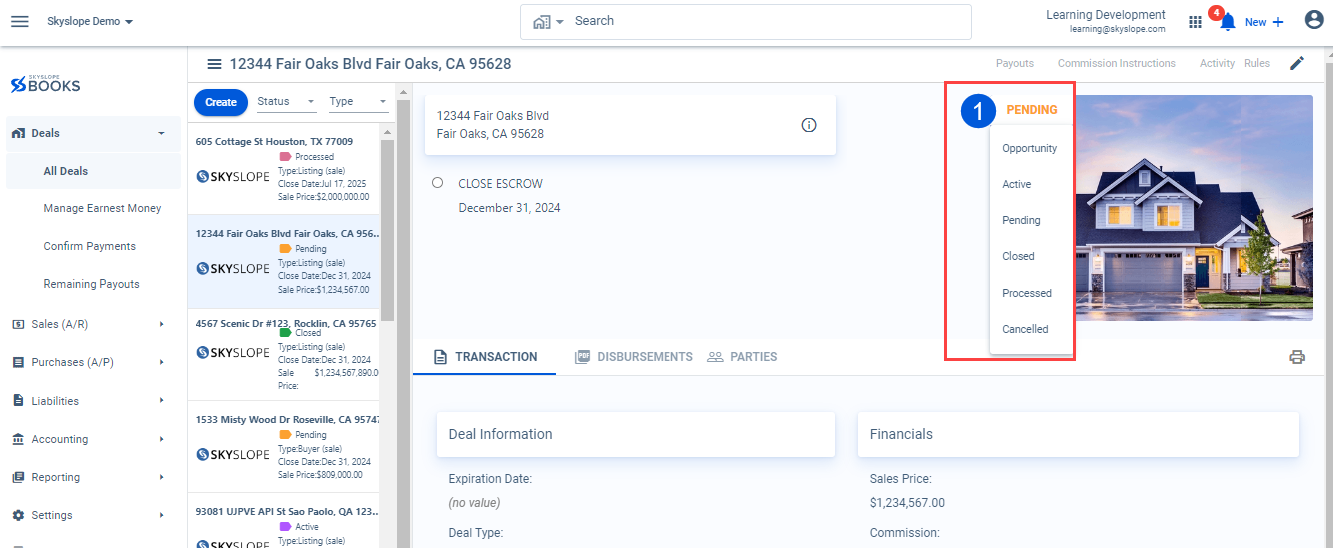
Deals Summary Page
While viewing the Deal Summary page, click on the status to view the dropdown. Select the new status to update.
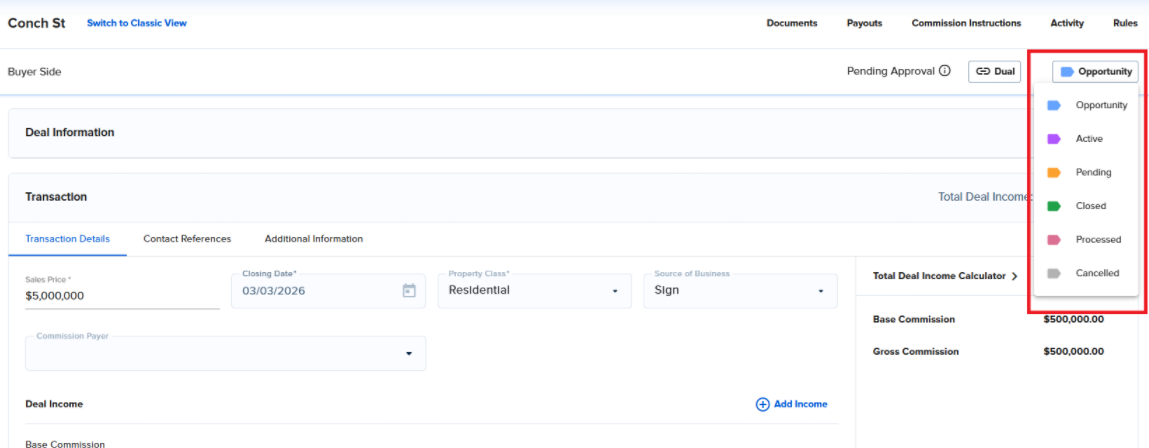
Edit Deal Page
While editing a Deal, the deal status can be updated in the Deal Information card. Click the Deal Status in the top right, and select the new status. Save the deal.
Was this article helpful?
That’s Great!
Thank you for your feedback
Sorry! We couldn't be helpful
Thank you for your feedback
Feedback sent
We appreciate your effort and will try to fix the article
<\br>