This article will help complete the Dotloop integration just in case the user stops the integration process halfway to completion.
When initiating the Dotloop Integration and the process was stopped midway your Dotloop Integration will look like this.
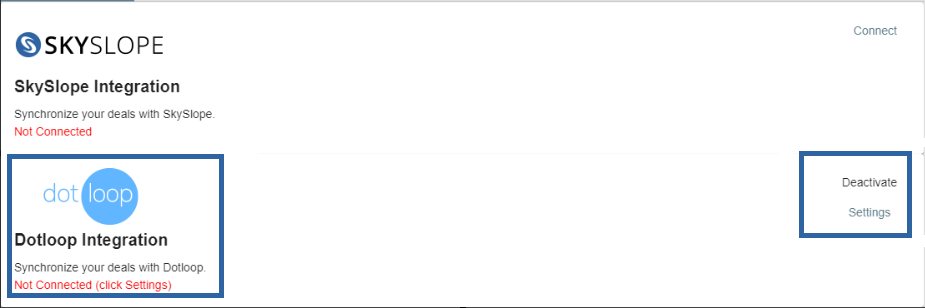
To continue the process:

The next screen will show that Dotloop Integration is "Activated" but not "Connected" where it will now ask the user to click "Settings" to proceed.
This screen should come up. Click Authorize.
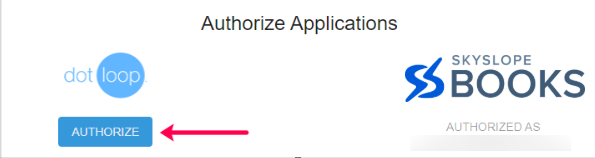
Afterwards, the screen where it will ask you for your Username and Password should come up.

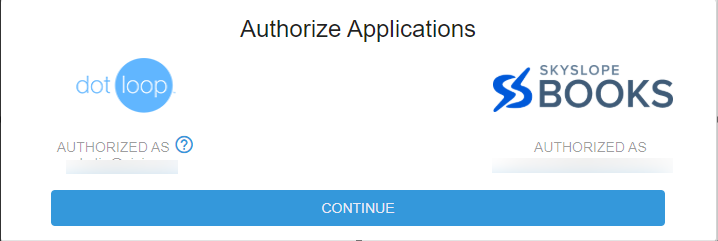
Place in the Username and Password and afterward the Authorized Applications screen should show and just click Continue.
In the next screen just click Save and Continue.
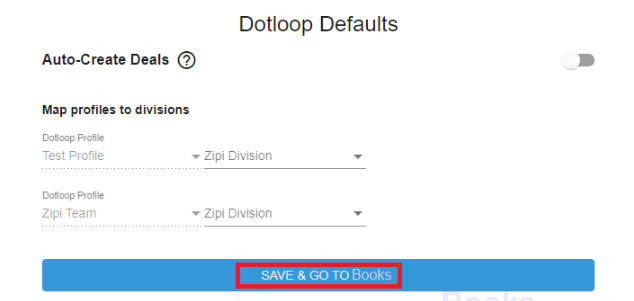
This will now bring you back to SkySlope Books will it show that Dotloop is now Connected.

The Dotloop integration is now complete!
Was this article helpful?
That’s Great!
Thank you for your feedback
Sorry! We couldn't be helpful
Thank you for your feedback
Feedback sent
We appreciate your effort and will try to fix the article
<\br>