The Integrations Page
In the left menu, navigate to Settings. Under Settings, select Integrations. This will take you to the Integrations page, where you can view all the integrations offered by SkySlope Books.
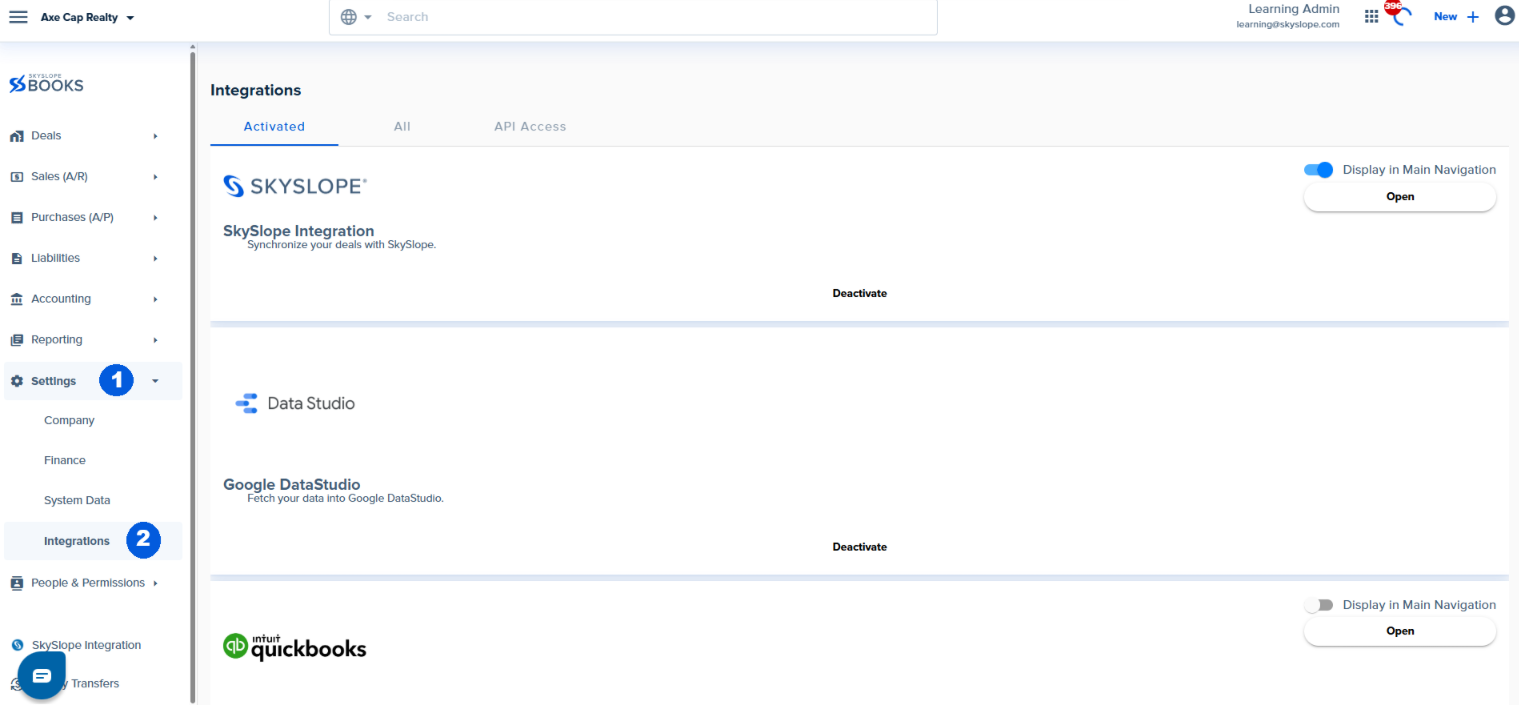
This page has two tabs:
Activated - The Activated section shows all the integrations that have been activated in your company.
All - The All section shows all the integrations SkySlope Books offers

Deactivating Integrations
You can deactivate any integration by clicking Deactivate on the integration card.

You will see a pop-up asking you to confirm that you want to deactivate the integration. To proceed, click Deactivate.
Deactivating the integration will mean no one in the company will have access to it.
Display in Main Navigation
This option is only available for Dotloop, SkySlope, and SkySlope Books Pay. Enabling this toggle will allow you to see the integration in the navigation menu.

Once the integration is displayed in the navigation menu, you can view and manage the details of the user connected to the integration.
You can also view these details by clicking Open on the integration card.

Was this article helpful?
That’s Great!
Thank you for your feedback
Sorry! We couldn't be helpful
Thank you for your feedback
Feedback sent
We appreciate your effort and will try to fix the article
<\br>